You will learn
How to configure Shopify’s SMS consent checkbox so it includes the required CTIA/TCPA disclosures that carriers (and Twilio) expect.
Disclaimer: Educational content only, not legal advice. Regulations change. Consult legal counsel for your program.
Before you begin
- Enable SMS marketing in Shopify — Settings → Checkout → Marketing options → SMS marketing → toggle On.
- Add SMS language to your Terms of Service and Privacy Policy (examples below).
- Review Zammer’s Messaging Policy and Acceptable Use Policy.
Where consent is collected
Consent is collected at Shopify checkout via the SMS marketing checkbox. Shopify’s default label is: “Text me with offers and updates.” This default text does not include CTIA disclosures. You must add the disclosures to the label using Customize labels.
Path: Settings → Checkout → Customize labels → Checkout marketing → SMS marketing label.
What to put in the checkbox label (required disclosures)
Standard version (recommended)
Use this if the label supports sufficient characters:
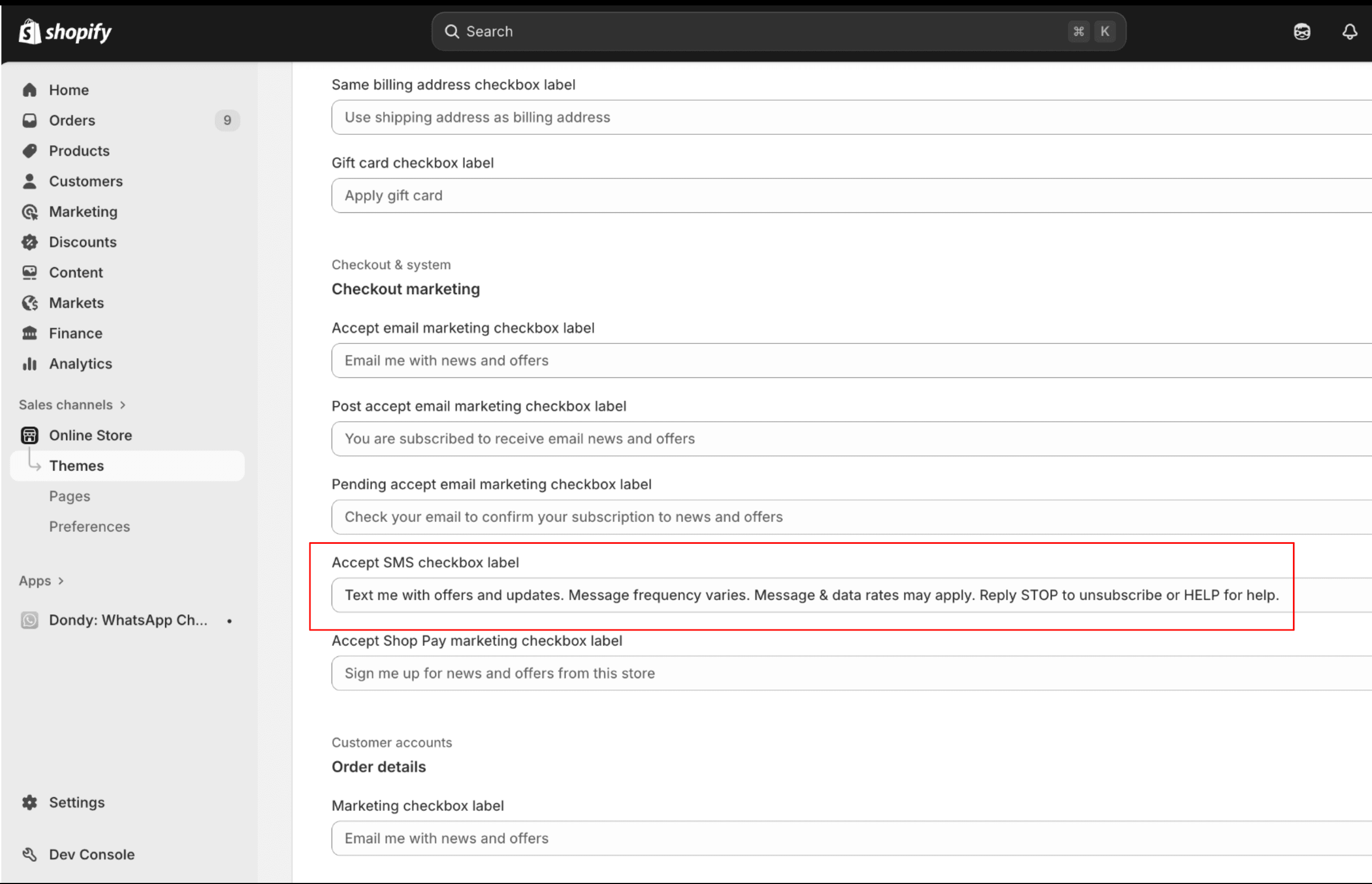
Notes:
- Keep the box un-checked by default (no pre-select).
- Link to your Terms and Privacy if possible; if not, ensure they’re linked nearby on the page.
Add SMS language to your store policies
Add to your Terms of Service
Add to your Privacy Policy
Reference examples: https://www.zammer.io/tos and https://www.zammer.io/privacy
Best practices
- Do not pre-select the checkbox.
- Place the label so it’s visible before customers opt in.
- Avoid URL shorteners; use your domain.
- Honor STOP/HELP immediately—Zammer suppresses opted-out numbers automatically.
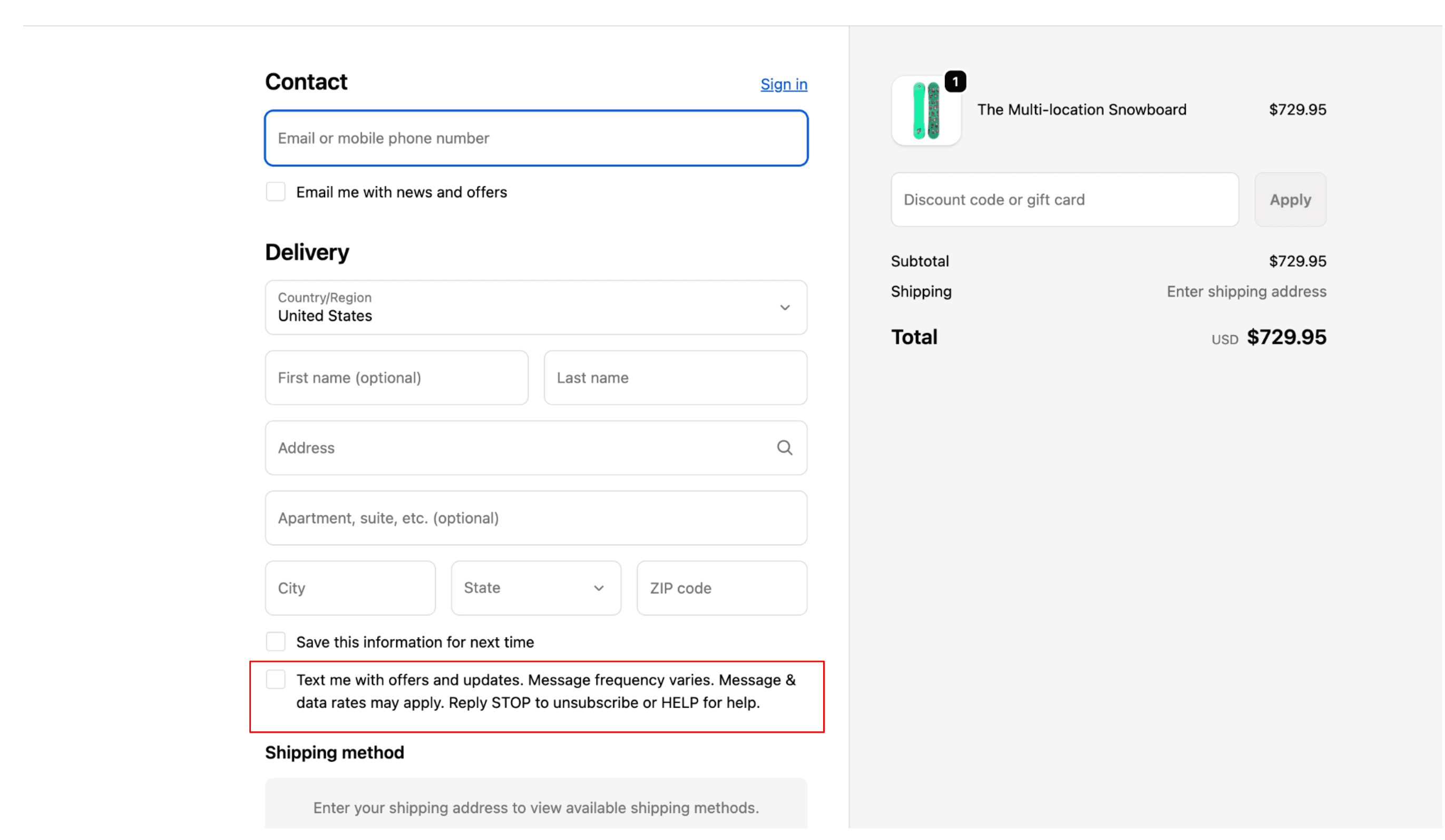
- Keep screenshots of your checkout label for compliance reviews.
Example
Caption: Shopify SMS consent with required CTIA disclosures embedded in the label. Zammer reads this consent via the Shopify API.
Need help?
© 2025 Itzhak Smocha LTD. All rights reserved.